

QuickBooks integration
Extract vendor invoice data with Sensible and Python, then automatically create bills in QuickBooks Online using a proof-of-concept integration tutorial.
This topic describes sending extracted data from vendor invoices into QuickBooks Online using Sensible and Python.
This is a proof-of-concept tutorial. It is not intended for production use. The OAuth flow, token storage, and credential handling are intentionally simplified for local development. See the inline
PRODUCTION:comments inqbo_auth.pyfor a summary of what would need to change before deploying this anywhere real.
flowchart LR
    A[Vendor invoice PDF] --> B["Sensible (invoices document type)"]
    B --> C["Python script"]
    C --> D["QuickBooks Online bill"]
Use cases
Vendor invoices often arrive as PDFs emailed by suppliers, downloaded from portals, or scanned from paper. Importing them into your accounting system is a core accounts payable workflow. Here are a few scenarios where automating this with Sensible and QuickBooks Online is valuable:
-
AP automation for bookkeeping services. You're a SaaS company that handles bookkeeping for small-business clients. Your clients forward vendor invoices to you as PDF documents, and you extract invoice data from the documents automatically and create bills in QBO for the clients to pay.
-
Expense management for growing businesses. You're a mid-size company receiving dozens of vendor invoices per month across multiple departments. Rather than routing paper invoices through an approval chain and then hand-entering them, you extract the data with Sensible and push it directly into QBO as bills ready for review and payment.
-
Financial ops tooling for vertical SaaS. You're building a platform for a specific industry (for example, construction, healthcare, or logistics) where your customers receive high volumes of vendor invoices with industry-specific line items. You embed Sensible's extraction into your product and sync bills to your customers' QuickBooks Online accounts via the API.
In this tutorial, you'll set up the first scenario: extracting a vendor invoice with Sensible and creating a bill in QuickBooks Online using Python.
The Python script:
- Extracts structured data from a sample vendor invoice PDF using an LLM-powered extraction
invoicesconfig, and - Creates a new bill in QuickBooks Online from the extracted data.
Add the invoices document type to your Sensible account
The script uses Sensible's invoices document type, which is available in the Sensible configuration library. To add support for invoices:
- Sign up for a Sensible account and complete onboarding steps, then navigate to your dashboard in the Sensible app.
- Click the Template library tab.
- Search for invoices or browse by use case.
- Click the invoices document type, then click Clone to account. Sensible adds the document type and its extraction configurations to your Document types tab.
- Test the document type by uploading a sample invoice on the Extract tab.
Set up a destination in QuickBooks Online
Before you can run the integration, you need to configure a QuickBooks Online app to test against. If you're using a free Intuit Developer account for testing, take the following steps:
- Sign in to developer.intuit.com and navigate to your workspace.
- On the Apps tab, click the + button to create a new app.
- Name your app (for example, "Sensible Integration Test"), select com.intuit.quickbooks.accounting as the OAuth scope, and in the dialog, verify the API Product is QuickBooks Online.
- Click View credentials to view and copy the Client Secret and Client ID. You'll use these as environment variables in a later step. Or, if the dialog is inaccessible:
- Click the app you created to open it.
- Navigate to the Keys and credentials tab and copy the Client ID and Client Secret.
- In your app, add a local redirect to enable authentication in succeeding steps:
- Navigate to the Settings tab.
- Under Redirect URIs, verify you're in the Development tab, click Add URI, enter
http://localhost:8080/callback, and click Save
- In the upper-right corner, click My Hub, select Sandboxes, and verify that a default sandbox company exists. In succeeding steps, a Python script creates bills in this company.
Integrate with Python
You can use Sensible's Python SDK and the python-quickbooks library to extract invoices and create bills in QuickBooks Online in a single script.
Prerequisites
- In a terminal, use the following commands to download the scripts from GitHub and install prerequisites:
git clone https://github.com/sensible-hq/sensible-quickbooks-py.git
cd sensible-quickbooks-py
pip install sensible-sdk python-quickbooks intuit-oauth- Set the following environment variables. To set them for the current terminal session only, run
export VARIABLE=value. To persist them, add the export commands to your shell profile (e.g.~/.bashrcor~/.zshrc) and runsource ~/.bashrc(orsource ~/.zshrc) to apply them to the current session.
| Variable | Description |
|---|---|
SENSIBLE_API_KEY | Your Sensible API key, available on your Sensible account page. |
QBO_CLIENT_ID | Your QuickBooks app's client ID. In the Intuit Developer Portal, open your app and navigate to Keys and credentials. |
QBO_CLIENT_SECRET | Your QuickBooks app's client secret. In the Intuit Developer Portal, open your app and navigate to Keys and credentials. |
One-time authentication
Before running the integration for the first time, authorize and to save your QuickBooks tokens. Run the setup script in a terminal (not in an AI coding tool):
python quickbooks-setup.py # run this in a terminal, not in an AI coding assistant, so you can view and copy the printed authorization URLThe script prints an authorization URL. Copy it, open it in your browser, and complete any instructions. Once you authorize, the script saves your tokens automatically. You won't need to reauthorize unless your refresh token expires (after a number of days) or unless your tokens are revoked or deleted locally.
Extract data from a sample invoice and import to QuickBooks
Run the integration script in a terminal (not in an AI coding tool):
python invoice_to_quickbooks.py # run this in a terminal, not in an AI coding assistant, to view the full outputExpected output
Running the script produces output like the following:
python invoice_to_quickbooks.py

[1/5] Extracting invoice with Sensible ...
  ✓ Vendor: Fictional Horticulture Vendor
  ✓ Invoice #: 39
  ✓ Total: 28.215
  ✓ Line items: 4

[2/5] Authenticating with QuickBooks Online ...
  ✓ Connected.

[3/5] Resolving expense account ...
  ✓ Using existing account: 'Uncategorized Expense' (ID 31)

[4/5] Resolving vendor ...
  ✓ Created new vendor: Fictional Horticulture Vendor (ID 59)

[5/5] Creating bill in QuickBooks ...
  • Line 1: Leather Leaf — $20,475.00
  • Line 2: Leather Leaf — $4,620.00
  • Line 3: Leather Leaf — $1,200.00
  • Line 4: Leather Leaf — $1,920.00

============================================================
✓ Bill created successfully for your QuickBooks company. Company ID: 9341456650201556
    ID:     149
    Vendor: Fictional Horticulture Vendor
    Date:   2023-04-02
    Lines:  4
    View:   https://app.sandbox.qbo.intuit.com/app/bill?txnId=149
============================================================
Follow the link in the output to view the created bill in QuickBooks. Or, navigate to your sandbox company's expenses and filter bills by the invoice's date to view the bill:
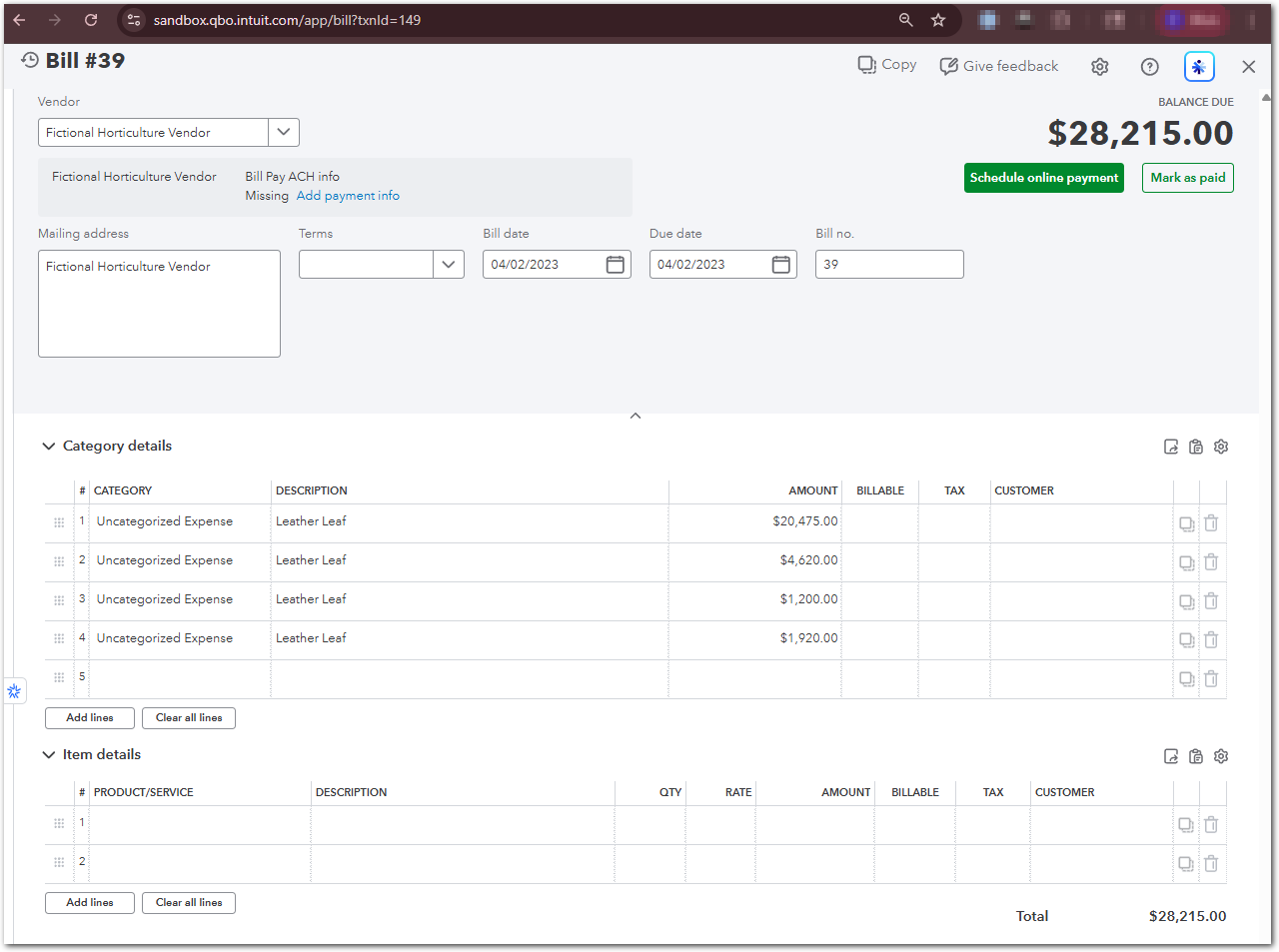
Compare the bill to the sample vendor invoice PDF to learn how QuickBooks imported the document data:
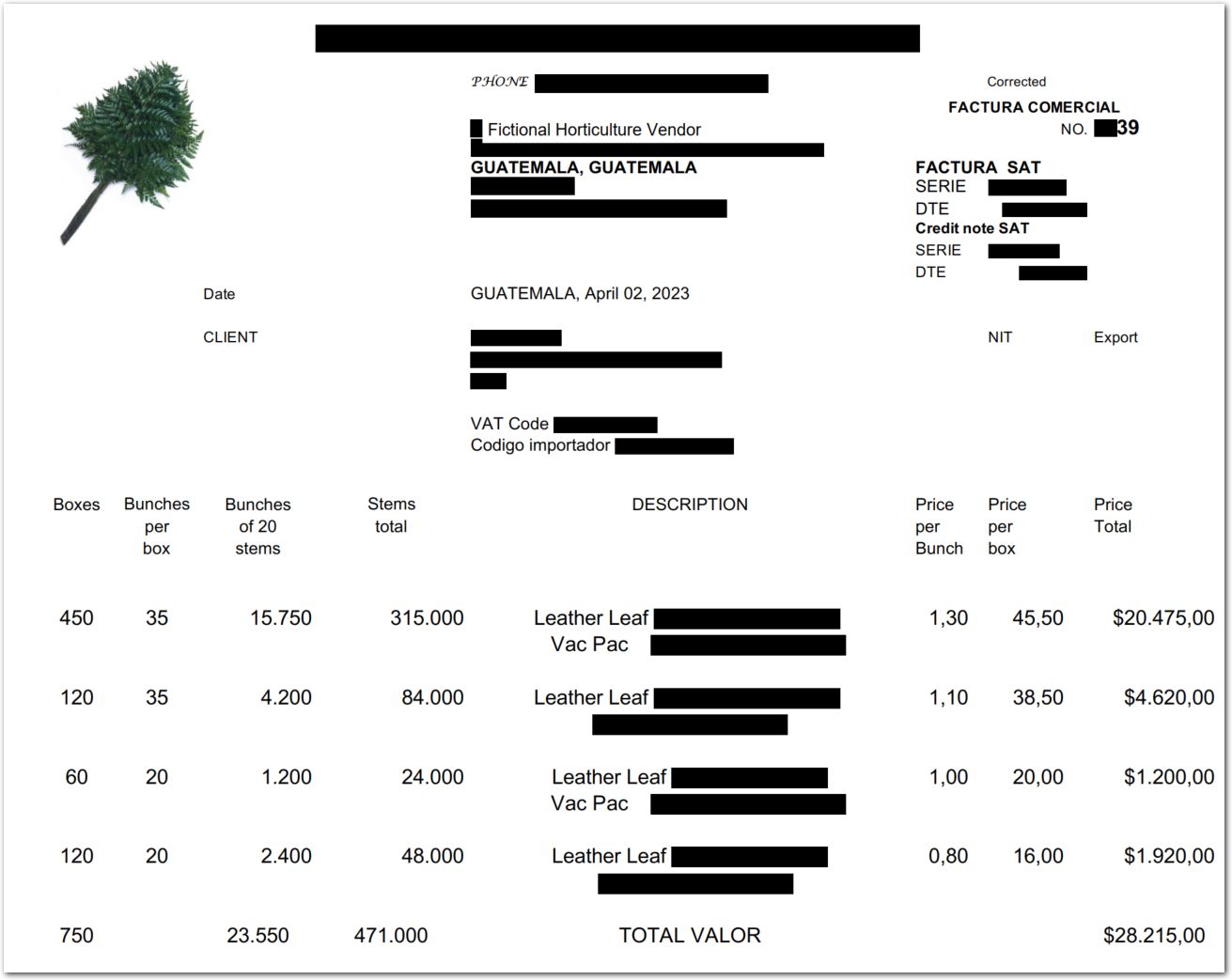
What the script does
The script runs five steps:
- Extracts invoice data using Sensible's LLM-powered
invoicesdocument type from a local PDF (invoice_sample.pdf). - Authenticates with QuickBooks Online using your saved tokens (refreshes automatically and silently).
- Finds a matching expense account in your sandbox company's Chart of Accounts. Checks for common names like "Uncategorized Expense" and "Miscellaneous", or creates one called "Invoice Imports - Needs Review" if none exist.
- Finds or creates a vendor matching the extracted vendor name.
- Creates a bill in QuickBooks with the extracted line items.
Field mapping
The response from the Sensible API includes a parsed_document object containing the extracted document data:
{
    "id": "a588d912-02dc-4637-9c79-7f6992ab772b",
    "created": "2026-04-06T22:19:42.270Z",
    "completed": "2026-04-06T22:20:57.085Z",
    "status": "COMPLETE",
    "type": "invoices",
    "document_name": "invoice_sample",
    "configuration": "llm_invoices_template",
    "environment": "production",
    "page_count": 1,
    "parsed_document": {
        "Vendor name": {
            "value": "Fictional Horticulture Vendor",
            "type": "string",
            "confidenceSignal": "confident_answer"
        },
        "Vendor address": {
            "value": "GUATEMALA, GUATEMALA",
            "type": "string",
            "confidenceSignal": "confident_answer"
        },
        "Customer name": null,
        "Customer address": null,
        "Customer ID (primary)": null,
        "Invoice number": {
            "value": "39",
            "type": "string",
            "confidenceSignal": "confident_answer"
        },
        "Invoice date": {
            "source": "2023-04-02",
            "value": "2023-04-02T00:00:00.000Z",
            "type": "date",
            "confidenceSignal": "confident_answer"
        },
        "Invoice due date": null,
        "Ship Via": null,
        "Ship Date": null,
        "PO number": null,
        "Currency": {
            "value": "USD",
            "type": "string",
            "confidenceSignal": "inferred_answer"
        },
        "Terms": null,
        "Bank_name": null,
        "Bank account name": null,
        "Bank routing number": null,
        "Bank Swift code": null,
        "Bank account number": null,
        "Sub-total before taxes": {
            "source": "28215",
            "value": 28215,
            "type": "number",
            "confidenceSignal": "confident_answer"
        },
        "Tax amount": null,
        "Total amount of invoice": {
            "source": "28.215",
            "value": 28.215,
            "type": "number",
            "confidenceSignal": "confident_answer"
        },
        "line_items": [
            {
                "item_number": null,
                "item_description": {
                    "value": "Leather Leaf",
                    "type": "string"
                },
                "item_boxes": {
                    "source": "450",
                    "value": 450,
                    "type": "number"
                },
                "item_unit_quantity": {
                    "source": "35",
                    "value": 35,
                    "type": "number"
                },
                "item__uom": {
                    "value": "bunches",
                    "type": "string"
                },
                "item__unit_price": {
                    "value": "1,30",
                    "type": "string"
                },
                "item__box_price": {
                    "value": "45,50",
                    "type": "string"
                },
                "item_total": {
                    "value": "20475",
                    "type": "string"
                }
            },
            {
                "item_number": null,
                "item_description": {
                    "value": "Leather Leaf",
                    "type": "string"
                },
                "item_boxes": {
                    "source": "120",
                    "value": 120,
                    "type": "number"
                },
                "item_unit_quantity": {
                    "source": "35",
                    "value": 35,
                    "type": "number"
                },
                "item__uom": {
                    "value": "bunches",
                    "type": "string"
                },
                "item__unit_price": {
                    "value": "1,10",
                    "type": "string"
                },
                "item__box_price": {
                    "value": "38,50",
                    "type": "string"
                },
                "item_total": {
                    "value": "4620",
                    "type": "string"
                }
            },

        ]
    },
    "validations": [],
    "validation_summary": {
        "fields": 25,
        "fields_present": 11,
        "errors": 0,
        "warnings": 0,
        "skipped": 0
    },
    "classification_summary": [
        {
            "configuration": "llm_invoices_template",
            "score": {
                "value": 35,
                "fields_present": 35,
                "penalties": 0
            }
        }
    ],
    "errors": [],
   {...}, //abridged response
}
The script reads fields from the parsed_document object in the Sensible API response and maps them to QuickBooks Online bill fields:
| Bill field | Sensible field | Notes |
|---|---|---|
bill.VendorRef | Vendor name | The script searches for an existing QBO vendor with a matching DisplayName, or creates a new vendor if none is found. |
bill.TxnDate | Invoice date | The date on the invoice. |
bill.DueDate | Invoice due date | The payment due date, if present on the invoice. |
bill.DocNumber | Invoice number | The vendor's invoice number, for cross-referencing. |
line.Description (line 1) | line_items[0].item_description | The description of the first line item. |
line.Amount (line 1) | line_items[0].item_total | The amount of the first line item. |
line.Description (line 2) | line_items[1].item_description | The description of the second line item. |
line.Amount (line 2) | line_items[1].item_total | The amount of the second line item. |
line.Description (line n) | line_items[n].item_description | The script iterates the full line_items array and creates one bill line per entry. |
line.Amount (line n) | line_items[n].item_total | |
line.AccountBasedExpenseLineDetail.AccountRef | (resolved automatically) | All lines use the same expense account, resolved as described in What the script does. |
(Optional) Scale up
This tutorial processes a single local PDF. Here are a few ways to expand on this tutorial.
Process a batch of invoices
To extract multiple invoices in one run, loop over a directory of PDFs and call sensible.extract() for each file. Add error handling to log failures without stopping the batch.
Trigger extraction automatically by email
Sensible supports automatic extraction of invoices as you receive them via its email processor. Forward invoices to a Sensible-generated address, and Sensible extracts them and POSTs the extraction response containing the parsed_document to your webhook endpoint. Replace the sensible.extract() call in the script with a webhook handler on your server.
Extract other document types
The same pattern works for any document type for which you add support to your Sensible account, for example, purchase orders, receipts, expense reports, and more. Update the document_type parameter in the extract() call and update the field mapping to match the new document type's fields.
Production considerations
Before deploying this integration in production, review the PRODUCTION: comments throughout qbo_auth.py. Key changes include:
- Storing OAuth tokens in a secrets manager (such as AWS Secrets Manager) rather than a local file
- Replacing the browser-based OAuth flow with a proper web redirect flow
- Switching
environment="sandbox"toenvironment="production"in both theAuthClientandQuickBooksconstructors - Adding per-account token storage if your service connects to multiple QuickBooks Online companies
Extract more information
The invoices document type has out-of-the-box support for a standard set of fields. To extract additional data or add quality checks, edit the extraction config in the Sensible app:
- Click Document types, then click invoices.
- Click the config name (for example,
llm_invoices_template) to open the editor.
To extract a field not covered by the default config, add a new entry to the fields array describing what you want the LLM to extract using an LLM-based method. For example, extract payment terms with a prompt like "Payment terms, for example 'Net 30' or 'Due on receipt'".
Note that deterministic layout-based methods for extracting data are generally inapplicable unless you have high volume from vendors that use a consistent layout.
Postprocess extracted fields
You can transform extracted data with LLMs or with logic. For example:
- You want to add expense categories to line items and the source invoice lacks this information. Add a field that uses the
customComputationmethod to deterministically categorize line-item expenses based on keywords. Or, chain two LLM prompts together using the Query Method to first extract and then categorize line item expenses. - You want to validate that the subtotals listed in the invoice actually equal the total amount due. You can create a validation using JsonLogic to flag bad invoices for human review.
Updated 26 days ago